Required methods
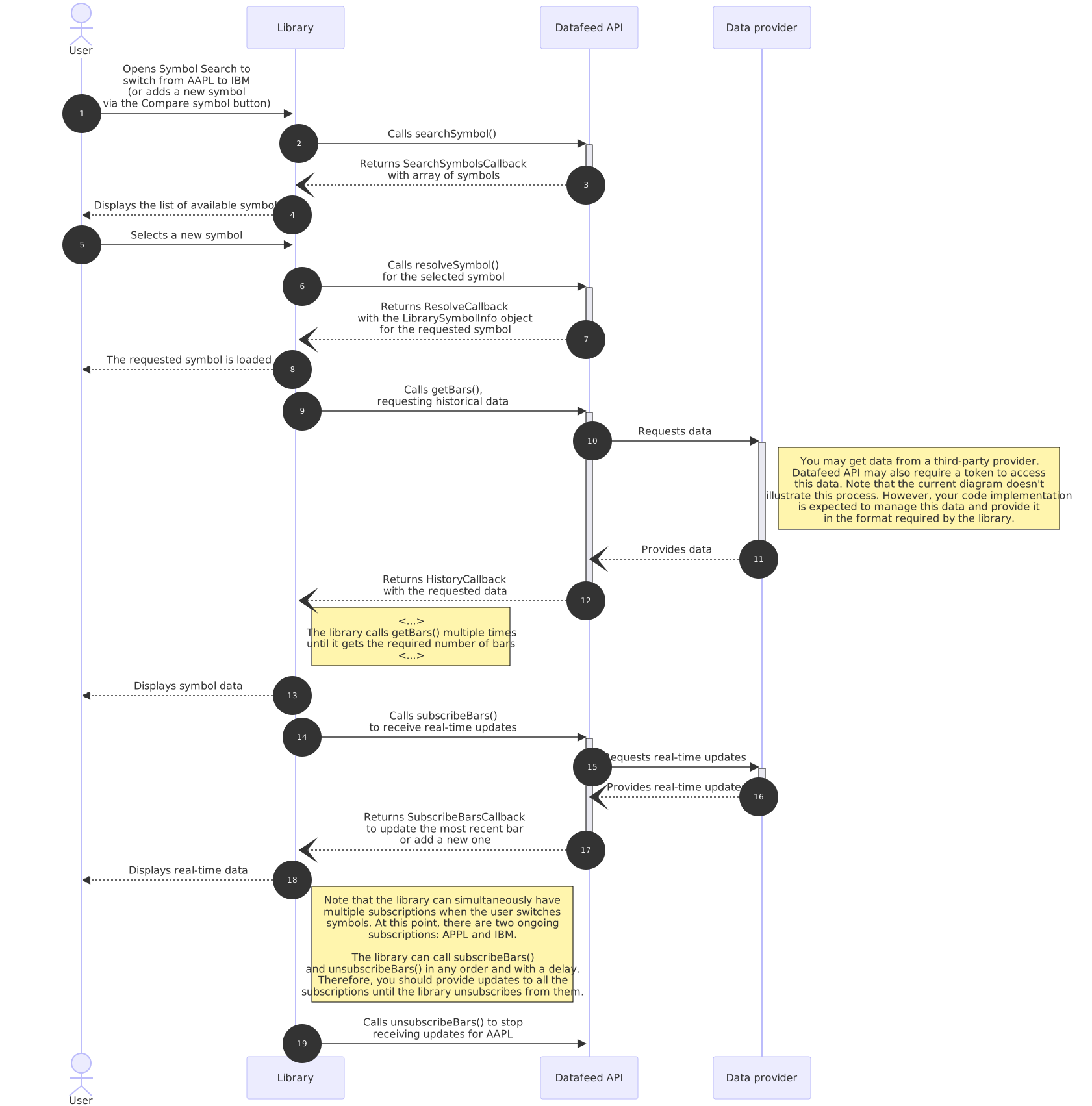
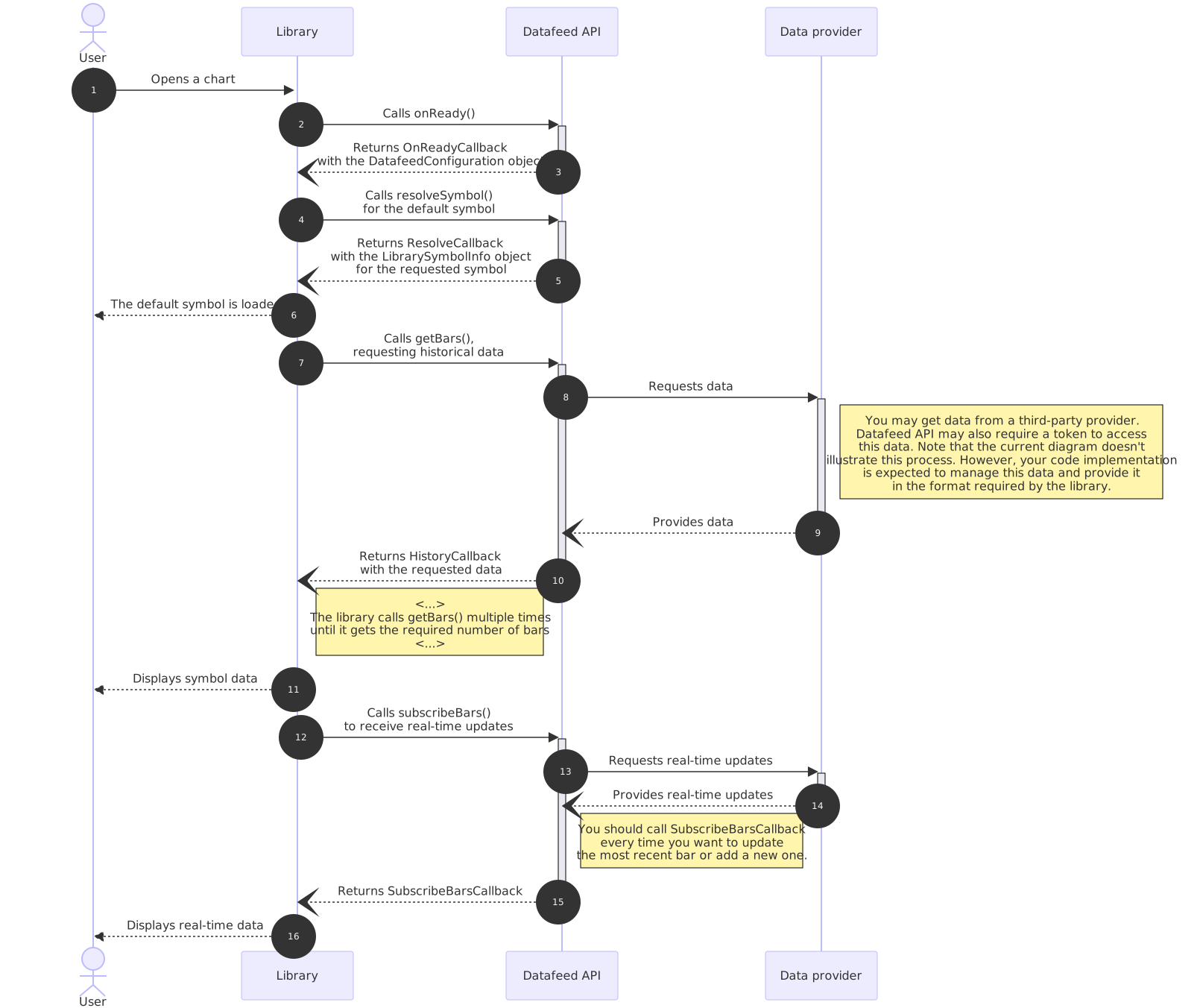
This article describes the required methods in the Datafeed API. The library calls these methods to initialize the chart, resolve requested symbols, and load data for them. At the end of the article, you can find diagrams illustrating the sequence in which methods are called.
Refer to the How to connect data via Datafeed API tutorial that explains how to implement the datafeed methods step-by-step .
onReady
The library calls the onReady method when the chart is initialized. This method supplies the library with the datafeed configuration data such as supported symbol types, exchanges, time intervals (resolution), currency codes and more. Call the OnReadyCallback and pass a DatafeedConfiguration object as a parameter:
onReady: (callback) => {
    console.log('[onReady]: Method call');
    setTimeout(() => callback(configurationData));
}
The following code sample shows the DatafeedConfiguration implementation:
const configurationData = {
    supports_search: true,
    supports_group_request: false,
    supports_marks: true,
    supports_timescale_marks: true,
    supports_time: true,
    exchanges: [
        { value: "", name: "All Exchanges", desc: "" },
        { value: "NasdaqNM", name: "NasdaqNM", desc: "NasdaqNM" },
        { value: "NYSE", name: "NYSE", desc: "NYSE" }
    ],
    symbols_types: [
        { name: "All types", value: "" },
        { name: "Stock", value: "stock" },
        { name: "Index", value: "index" }
    ],
    supported_resolutions: ["D", "2D", "3D", "W", "3W", "M", "6M"]
}
searchSymbols
If you are dealing with a large number of symbols, consider implementing the searchSymbolsPaginated method instead.
Unlike searchSymbols, which returns all results at once, searchSymbolsPaginated retrieves results in pages as the user scrolls.
The library calls the searchSymbols method to request symbols that match some user input. Pass the resulting array of symbols as a parameter to SearchSymbolsCallback.
searchSymbols: async (
    userInput,
    exchange,
    symbolType,
    onResultReadyCallback,
) => {
    console.log('[searchSymbols]: Method call');
    const symbols = await getMatchingSymbolsFromBackend(userInput, exchange, symbolType);
    onResultReadyCallback(newSymbols);
}
As a result, the library gets an array of SearchSymbolResultItem objects that have the following format:
[
    {
        "symbol": "<short symbol name>",
        "description": "<symbol description>",
        "exchange": "<symbol exchange name>",
        "ticker": "<symbol ticker name>",
        "type": "stock" // "futures"/"crypto"/"forex"/"index"
    },
    {
        //...
    }
]
If no symbol is found, pass an empty array to SearchSymbolsCallback.
You can adjust the frequency of search requests utilizing the symbol_search_request_delay property.
resolveSymbol
The library calls the resolveSymbol method to get symbol information such as the exchange, time zone, trading hours, etc. Specify this information in a LibrarySymbolInfo object as demonstrated below:
const symbolInfo = {
    ticker: 'BTCUSD',
    name: 'BTCUSD',
    description: 'Bitcoin/USD',
    type: symbolItem.type,
    session: '24x7',
    timezone: 'Etc/UTC',
    exchange: 'Example Exchange',
    minmov: 1,
    pricescale: 100,
    has_intraday: false,
    visible_plots_set: 'ohlcv',
    has_weekly_and_monthly: false,
    supported_resolutions: ['1', '5', '30', '60', '1D', '1W'],
    volume_precision: 2,
    data_status: 'streaming',
};
Pass symbol information as a parameter to ResolveCallback. If the symbol cannot be resolved, call ErrorCallback and specify an error message.
resolveSymbol: async (
    symbolName,
    onSymbolResolvedCallback,
    onResolveErrorCallback,
    extension
) => {
    try {
        const symbolInfo = await getSymbolInfoFromBackend(symbolName, extension);
        onSymbolResolvedCallback(symbolInfo);
    } catch (err) {
        onResolveErrorCallback(err.message);
    }
}
Multiple symbol resolving
In the LibrarySymbolInfo object, you can provide both name and ticker as the symbol name.
The library behaves differently based on whether these values are the same or different:
- If the name and ticker are the same, the library makes a single
resolveSymbolcall. - If the name and ticker differ, the library resolves the symbol twice: once for the entered name (e.g.,
KO) and again for the resolved ticker (e.g.,NYSE:KO).
Multiple resolving happens because a single symbol name can correspond to multiple tickers. For example, AAPL might return results for NASDAQ and LSE. By resolving the ticker separately, the library ensures accurate and complete information, as the ticker is expected to be unique and is prioritized for data display.
Display invalid symbol icon
You can display the default TradingView icon when error occurs. To do this, specify the "unknown_symbol" error message:
onResolveErrorCallback("unknown_symbol");
In this case, the chart shows the following icon and message.
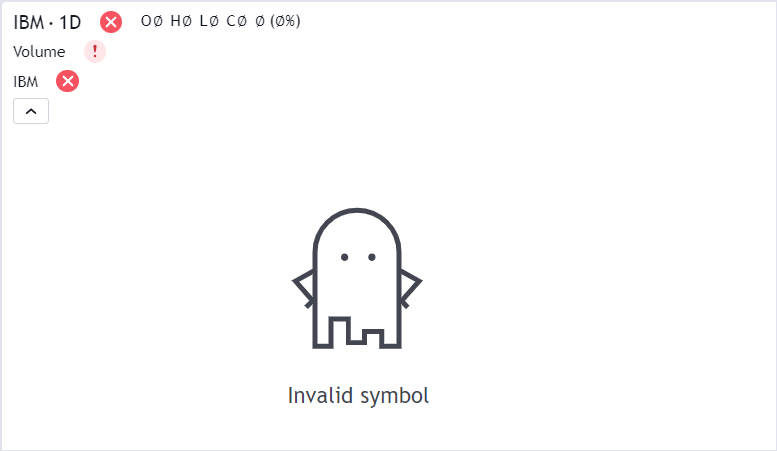
If the icon is not displayed, make sure that the hide_image_invalid_symbol featureset is not enabled.
getBars
The library calls getBars to get historical data in a certain range. To transfer the requested data, pass an array of Bar objects to HistoryCallback.
The library caches historical data. Therefore, you do not need to implement a client-side cache.
Bar order
The array of Bar items should be arranged in ascending chronological order, meaning that the timestamps of the bars should be getting bigger for each bar in the array. For example, [1746774000000, 1747058400000, 1747144800000, ...].
Note that for daily, weekly, and monthly bars, the time value should represent the beginning of the trading day at 00:00:00 UTC, not the beginning of the session.
Correct amount of data
The library calculates the amount of data that is necessary to fill the chart space and requests it in getBars. You cannot change this amount. Return data to getBars based on the following PeriodParams properties:
from— Unix timestamp in seconds of the leftmost requested bar. The library requires data in the[from, to)time range.to— Unix timestamp in seconds of the rightmost requested bar (not inclusive). Note that bartimevalues are in milliseconds.countBack— the required amount of bars to load.
It is more important to pass the required number of bars than to match the [from, to) time range for the following reasons:
- The library might miscalculate the
fromvalue. It may happen if you provide incorrectsessionorsession_holidaysvalues. In this case, the[from, to)range does not represent the required number of bars. - The library calculates the correct
fromvalue, but your backend does not contain enough bars in the[from, to)range. It might happen if the market was opened, but the symbol was not traded.
In both cases, the library calls getBars multiple times in order to get the missing data. It might cause potential issues. To avoid them, consider the following recommendations:
- Return at least two bars — returning only one may cause an error when clicking on the chart.
- Your response should always include all the existing data for the requested range.
- If the number of bars in the requested range is less than the
countBackvalue, you should include earlier bars until thecountBackcount is reached. For example, the chart requests 300 bars in the range[2019-06-01T00:00:00..2020-01-01T00:00:00), and your backend have only 250 bars in the requested period. Return these 250 bars and 50 bars prior to2019-06-01T00:00:00. - In the unlikely case that the number of bars in the requested range is larger than the
countBackvalue, then you should return all the bars in that range instead of truncating it to thecountBacklength. - If there is no data left (in other words the current response to return an empty array, and there is no older data on the server), set
noDatatotrueto prevent further requests.
The library can request more bars than are visible because some indicators require additional history, for example, Moving Average with the length 10.
Previously, it was necessary to specify noData and nextTime to load data outside the requested range. For now, you can send this data in response to the current request. However, you can still use these properties if your datafeed supports only the from/to properties and requires another request from the library.
Specify nextTime in milliseconds, the same as bar time.
The following piece of code is just a snippet to begin with. You will have to change it to fit your requirements but copying & pasting the code below should render candles on the chart for a given symbol and nothing for all other symbols. It is also to illustrate the noData: true result.
resolveSymbol(symbolName, onSymbolResolvedCallback, onResolveErrorCallback, extension) {
    setTimeout(
        () => {
            // Return some simple symbol information for the TEST symbol
            if (symbolName === 'TEST') {
                onSymbolResolvedCallback({
                    "name": "TEST",
                    "timezone": "America/New_York",
                    "minmov": 1,
                    "minmov2": 0,
                    "pointvalue": 1,
                    "session": "24x7",
                    "has_intraday": false,
                    "visible_plots_set": "c",
                    "description": "Test Symbol",
                    "type": "stock",
                    "supported_resolutions": [
                        "D"
                    ],
                    "pricescale": 100,
                    "ticker": "TEST",
                    "exchange": "Test Exchange",
                    "has_daily": true,
                    "format": "price"
                });
            } else {
                // Ignore all other symbols
                onResolveErrorCallback('unknown_symbol');
            }
        },
        50
    );
}

getBars(symbolInfo, resolution, periodParams, onHistoryCallback, onErrorCallback) {
    setTimeout(
        () => {
            // For this piece of code only we will only return bars for the TEST symbol
            if (symbolInfo.ticker === 'TEST' && resolution === '1D') {
                // We are constructing an array for `countBack` bars.
                const bars = new Array(periodParams.countBack);

                // For constructing the bars we are starting from the `to` time minus 1 day, and working backwards until we have `countBack` bars.
                let time = new Date(periodParams.to * 1000);
                time.setUTCHours(0);
                time.setUTCMinutes(0);
                time.setUTCMilliseconds(0);
                time.setUTCDate(time.getUTCDate() - 1);

                // Fake price.
                let price = 100;

                for (let i = periodParams.countBack - 1; i > -1; i--) {
                    bars[i] = {
                        open: price,
                        high: price,
                        low: price,
                        close: price,
                        time: time.getTime(),
                    }

                    // Working out a random value for changing the fake price.
                    const volatility = 0.1;
                    const x = Math.random() - 0.5;
                    const changePercent = 2 * volatility * x;
                    const changeAmount = price * changePercent;
                    price = price + changeAmount;

                    // Note that this simple "-1 day" logic only works because the TEST symbol has a 24x7 session.
                    // For a more complex session we would need to, for example, skip weekends.
                    time.setUTCDate(time.getUTCDate() - 1);
                }

                // Once all the bars (usually countBack is around 300 bars) the array of candles is returned to the library.
                onHistoryCallback(bars);
            } else {
                // If no result, return an empty array and specify it to the library by changing the value of `noData` to true.
                onHistoryCallback([], {
                    noData: true
                });
            }
        },
        50
    );
}
}
Handling non-OHLC data
Since the library is intended to display multiple data types like candles, bars, and histograms, it typically expects Open, High, Low, Close (OHLC), and optional Volume for each timestamp. If your data source provides only a single price per timestamp, you can still provide this data using one of the following methods:
- Map your single price value to all four required properties in the Bar object:
Open = High = Low = Close = price. - Set the
visible_plots_setproperty inLibrarySymbolInfoto"c". This notifies the library that the symbol only supports close prices and automatically restricts the UI to line-based chart styles. See Supported price values.
For better visualization of single-price data, you can change the default chart style to "Line" using overrides.
subscribeBars
The library calls subscribeBars to receive real-time updates for a symbol.
Call SubscribeBarsCallback every time you want to update the most recent bar or add a new one.
For example, if the chart has loaded data up to 14:00, you can only update the last bar (14:00) or add a newer bar (15:00).
For a detailed explanation of how subscriptions work, including handling multiple subscriptions and unsubscribing, refer to Datafeed subscriptions.
You cannot update a historical bar using subscribeBars. Otherwise, you get the putToCacheNewBar: time violation issue.
If you need to change historical data, call resetCache and then chart.resetData() to redraw the chart.
Bar replacement
When you pass a bar whose time matches the most recent bar on the chart, the library replaces the entire bar with the new one.
It does not merge individual fields; every OHLCV value is overwritten.
For example, suppose the most recent bar is:
{ time: 1419411578413, open: 10, high: 12, low: 9, close: 11 }
You then call:
onRealtimeCallback({ time: 1419411578413, open: 10, high: 14, low: 9, close: 14 });
Because the time matches, the library replaces the bar.
The chart now shows the most recent bar with the following values:
{ time: 1419411578413, open: 10, high: 14, low: 9, close: 14 }
unsubscribeBars
The library calls unsubscribeBars when it no longer needs real-time updates for a specific subscription.
The listenerGuid parameter matches subscriberUID that was originally passed to subscribeBars.
Use this ID to identify which subscription to stop.
Note that the library calls unsubscribeBars with a short delay (typically 5 seconds) after the subscription is no longer needed.
This means your datafeed must continue sending updates until unsubscribeBars is called.
For more details, refer to the Datafeed subscriptions page.
Sequence diagrams
In this section, you can find diagrams illustrating the sequence of Datafeed API method calls. Expand the sections below to view the diagrams for the following cases:
A user opens a chart for the first time.
A user switches to a new symbol or adds a new one to the chart.