Version 32.1.0
Welcome to Version 32.1.0.
This release lets you render fully custom mark tooltips with your own web components, adds collapsible Watchlist sections, and allows keeping the Buy/Sell buttons visible on resolutions a symbol does not support. On the documentation side, every page is now available as Markdown for AI assistants, and the API Reference got a readability overhaul. Let's dive into the highlights.
Key updates
Mark tooltips you fully control
In Trading Platform, marks — the earnings, dividend, and news flags you put on the chart — can now open a tooltip rendered by your own web component instead of plain text. A logo, a link to your research page, or a small table of figures can finally live on the chart itself.
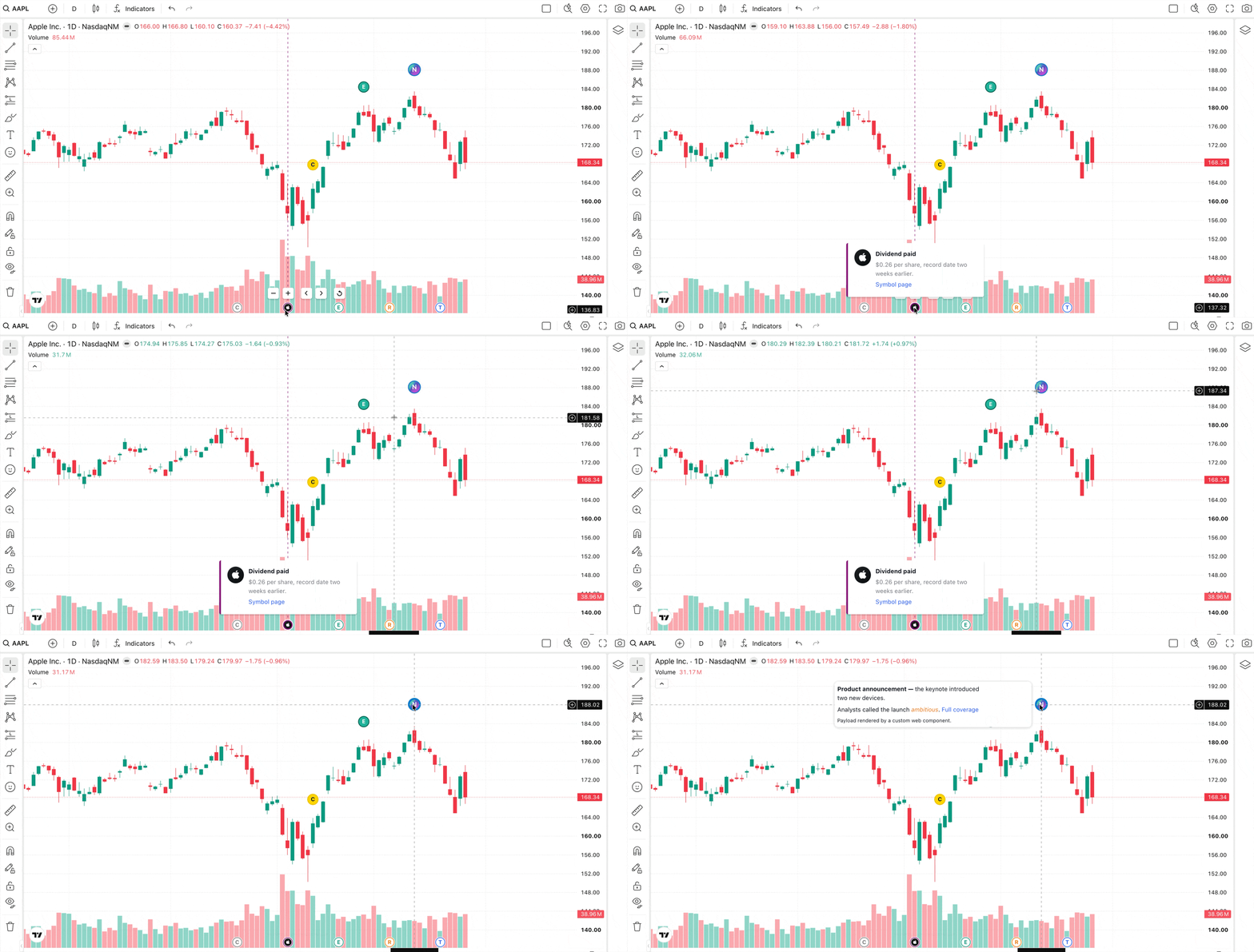
This works for both timescale marks and bar marks: register a custom element, load it with custom_js_urls, and set the new customTooltip property on the marks that should use it.
The Customize mark tooltips guide covers the full setup and a copy-pasteable renderer; also, the Trading Platform package ships it as a runnable demo (custom_marks.html).
getTimescaleMarks: (symbolInfo, from, to, onDataCallback, resolution) => {
    onDataCallback([
        {
            id: 'earnings-q2',
            time: 1712016000,
            color: '#089981',
            label: 'E',
            // An opaque string the library passes straight to your component.
            customTooltip: JSON.stringify({
                type: 'key-values',
                title: 'Q2 2026 Earnings',
                rows: [
                    { name: 'EPS actual', value: '2.18', trend: 'up' },
                    { name: 'EPS estimate', value: '1.94' },
                ],
            }),
        },
    ]);
},
It is opt-in per mark, the payload is never parsed as HTML, and marks fall back to the plain-text tooltip if your component fails to load.
By default, bar mark tooltips appear on hover, which puts links and buttons inside them out of reach.
Enable the pin_bar_mark_tooltips_on_click featureset — available in Advanced Charts as well — to reveal them on click and keep them pinned until the user clicks away.
Collapsible Watchlist sections
Traders group symbols into sections, and a long watchlist means a lot of scrolling to reach the group they actually care about right now. Clicking a section header now collapses or expands it, and the collapsed state is preserved across page reloads.
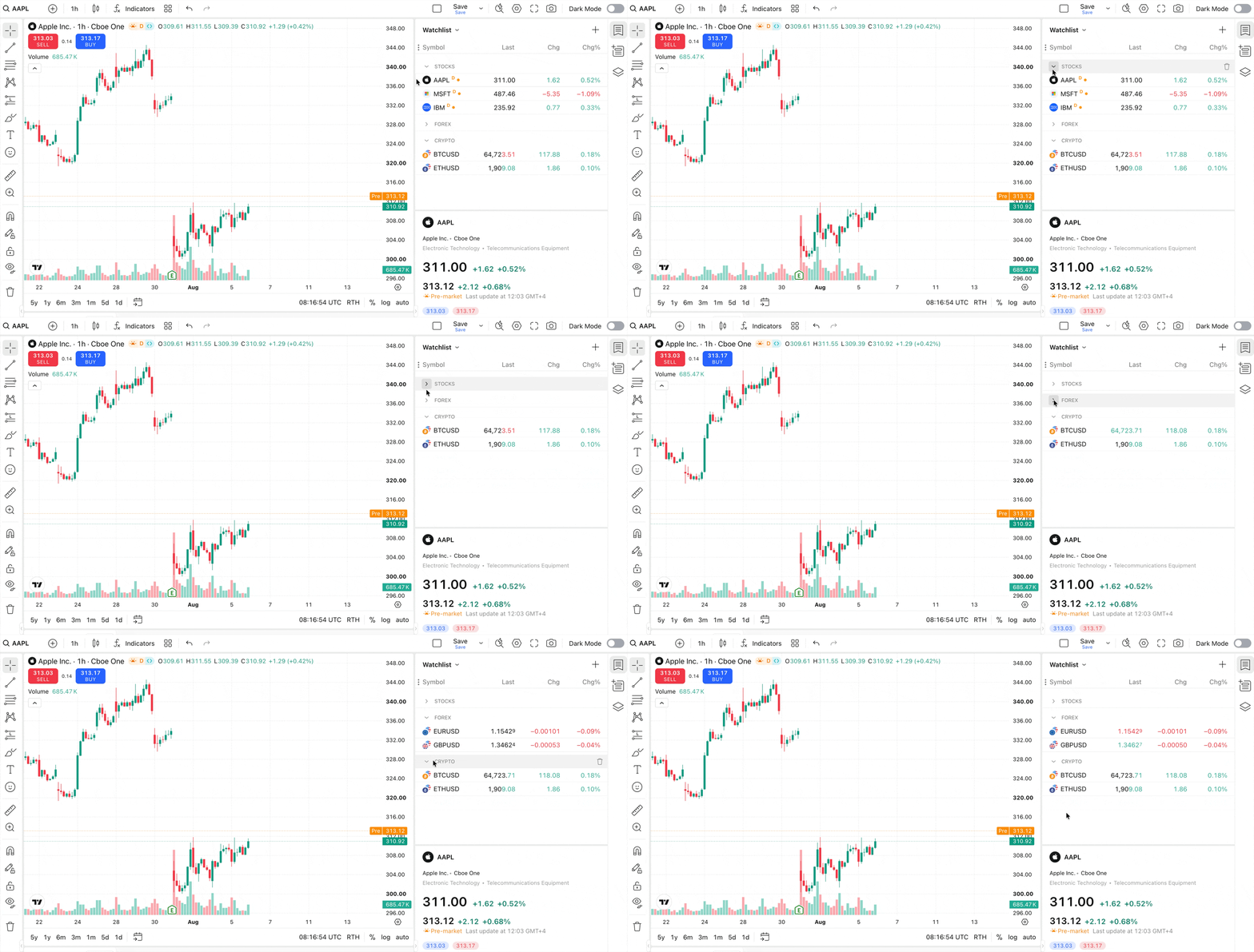
Nothing to configure: this is part of the watchlist_sections featureset, which is enabled by default and also controls the section-creation UI.
Buy/Sell buttons on unsupported resolutions
If a symbol has no data for the resolution a user switches to, the library treats the instrument as non-tradable and hides the Buy/Sell buttons.
For brokers whose instruments stay tradable regardless of the interval on screen, that is too strict — the symbol resolved fine, only the requested interval is unavailable.
To keep the Buy/Sell buttons visible in that case, enable the new show_buy_sell_buttons_on_unsupported_resolution featureset in the widget constructor.
enabled_features: ['show_buy_sell_buttons_on_unsupported_resolution'],
Documentation
Documentation your AI assistant can read
Every documentation page and the library's type definitions are now published in a form an AI assistant can read.
- Every page as Markdown. Append
.mdto any documentation URL, or use the Copy as Markdown / View as Markdown buttons under the page title. llms.txt— a flat, linked index of every page, in the format assistants look for first.docs_map.md— the same index with each page's headings, for when you need to point a tool at one specific section.- Type definitions —
charting_library.d.ts,datafeed-api.d.ts, andbroker-api.d.ts, linked fromllms.txtanddocs_map.mdso an assistant reads the real signatures instead of guessing them.
Add llms.txt as a documentation source in your AI tool — or paste its URL into a prompt — and it can pull the pages it needs on its own.
A more scannable API Reference
The API Reference now highlights what matters on a page instead of giving every detail the same weight. Deprecated and Recommended badges mark individual overloads, so it is clear whether a whole method is deprecated or only one of its signatures, and an Optional badge appears on methods as well as properties.
Conclusion
This release also includes important bug fixes: the market status now follows synced server time instead of the user's machine clock, the Anchored VWAP starts on the bar it is anchored to, and switching chart types with a Volume Profile indicator no longer leaves the chart unresponsive. For the full list of updates, improvements, and fixes, see the Release notes.